An Intelligent Vanity Mirror
Sep 21, 2025
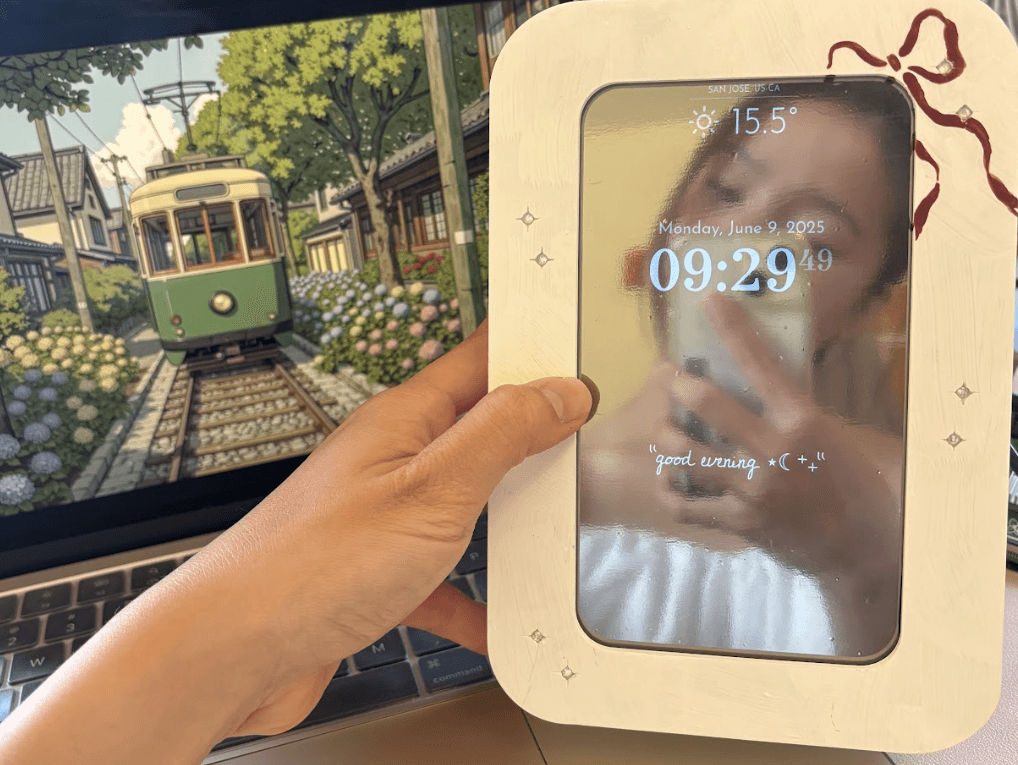
Magic Mirror
Relevant Links:
Instagram video: https://www.instagram.com/p/DKsBVjLpXd1/
Overview:
The story of how all this came about: I've been trying pretty hard not to look at my phone first thing in the morning, but sometimes I've just got to. I mean, how else am I going to check the weather for the day and decide what to wear? And then comes the habitual scroll of doom... darn. If only there were some way to check the weather and the time without opening my phone (and if you want to, the news as well).
Luckily, a super popular Raspberry Pi project solves this exact issue: the Magic Mirror.
The 'mirror' is essentially just an HDMI display covered by an acrylic sheet. It's controlled by a Raspberry Pi computer and runs the MagicMirror software. This project is accessible for beginners because you don't have to really write any of the software yourself - you just download it from MagicMirror's github repository! You get a little bit of simple css experience, but that's the extent of it!
Materials Needed:
For the mirror:
Raspberry Pi (RPi) 3/4/5
Power supply
HDMI cable
MicroSD card
Generally the recommendation nowadays is to get the Raspberry Pi 4B with around 2GB of RAM. This works for basically all modern projects. I got the larger RAM version because the 2GB was sold out.
Any monitor/display that connects to HDMI. This will define the size of your mirror.
one-way mirror acrylic sheet
For the enclosure:
3D printer
Instructions:
1) Set up your RPi and connect it to the internet
Think of an RPi as a computer motherboard. It's a computer distilled down to its core -- able to perform all of the 'computer' functions, but without any of the peripherals (keyboard, display) that allow us humans to interact with it. Oh, it also arrives comes completely empty ie. with no operating system software installed. If you just bought a new RPi, you'll have to set up all of this stuff. The key ones are:Install an Operating System onto an SD card, then slot the SD card into the RPi. Connect your RPi to the internet so you can download the MagicMirror software later. Here's a tutorial from the official RPi website for the two items above.Set up a way to access your RPi from your laptop. Otherwise, you'd have to have a separate monitor and keyboard on hand to connect to the RPi. If you find some way to access it remotely from your laptop, you can just open a new window and interact with it like it's a computer inside a computer! Again, a tutorial on this from the official RPi website
2) Download the MagicMirror Software
Yay! Now that you have your RPi software, we can start uploading the MagicMirror code to it.Open up the terminal on your RPi, then follow the Manual Installation instructions on this page of the offical MagicMirror website.For installing node.js, I thought that this article by w3schools was helpful. Specifically, scroll down to the section titled "Install Node.js on Raspberry Pi" and follow the steps from 'Update your system package list' to 'Check that installation was successful, and the version number of node.js with:'For everything to work in this section, you need to have three things:Git installedNode.js installedMagicMirror github repository (repo) cloned
3) Verify that your MagicMirror works!
When you type 'npm run start' in your RPi terminal while connected to your HDMI monitor, you should see the magic mirror screen appearing on the mirror! yippee! Give yourself a pat on the back.
4) Customise the display on your MagicMirror
There's a high likelihood that you want to change the way your mirror looks. No worries, that's the intention of the MagicMirror software being open-sourced. Here are some major changes you might need/want to do. Smaller, more specific changes would require looking through the forums on the MagicMirror website, as well as other places online.For most of these, you'll need a custom.css file. Simply go to MagicMirror/css then make a copy of the sample css file provided. You can edit files by typing "nano [file_name]"
Rotate the screen to portrait/landscape modeunder the body{} element, add/change a line which reads "transform: rotate(90deg);"Change the location for clock/weather dataGo into MagicMirror/config then open config.jsChange the timezone to match yours under the "clock" moduleChange the latitude and longtitude coordinates to match yours under the "weather" moduleChange font types and sizesGo to google fonts, select a font you like, click on Get Font >> Get Embed Code >> Web >> @importCopy the @import statement into the top of your custom.css file
5) Stick on the acrylic sheet
Measure out the dimensions of your display screen and cut a piece of acrylic sheet that corresponds to its size. Place a very small amount of soap mixed with water onto your screen. Be careful not to get it into the cracks as it will ruin the electronics! The soap mixture will help you get the air bubbles out.Carefully peal off the plastic cover on the acrylic sheet. Place it on the display.Use a mini windshield wiper/squeegee, ruler, or credit card to push all of the air bubbles out. This part takes patience, but I feel like it's the hardest part of the entire project (which is honestly good).
6) Make the Enclosure
Now you're ready to make the enclosure for the mirror, which is just a fancier word for the mirror frame. I personally 3D printed mine because I am fortunate to have access to 3D printers on campus. There may be public maker spaces in your general area that you can go to to use 3D printers. Otherwise, you can pay a visit to a hardware/arts & crafts store and buy some materials to build a frame. Another completely acceptable option is not to put a frame at all! For those interested, here are other MagicMirror tutorials on the internet that might be of inspiration:https://www.instructables.com/Raspberry-Pi-Smart-Mirror-1/https://www.raspberrypi.com/tutorials/how-to-build-a-super-slim-smart-mirror/https://www.instructables.com/How-to-Build-a-Raspberry-Pi-Smart-Mirror/
aaanddd... you're done!
Snap some photos, show off to your friends and family! Good stuff.